Kimai
Team Scheduler

PCSG - Computer & Internet Service OHG
Team Scheduler Bundle
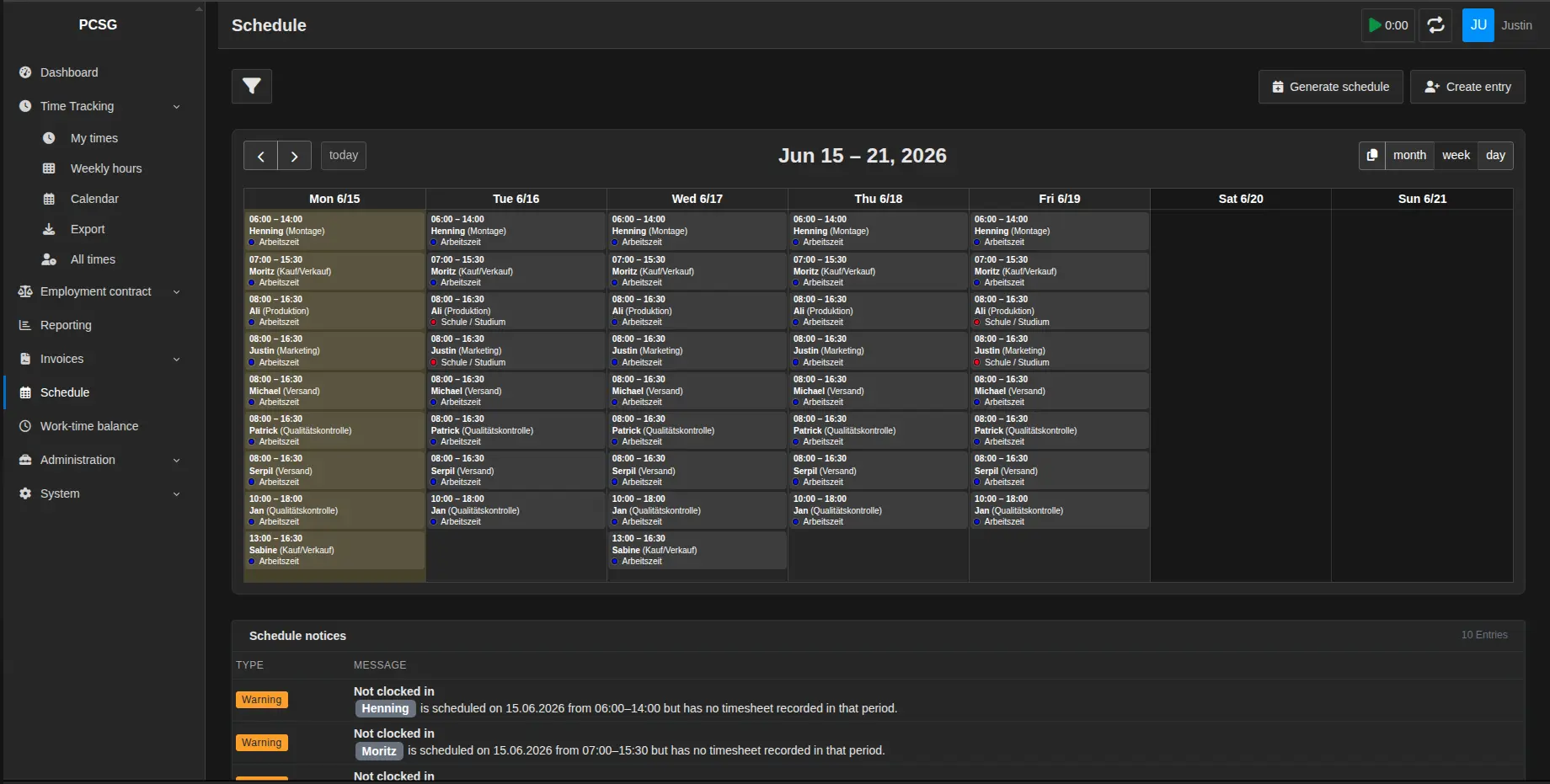
The Team Scheduler Bundle extends Kimai with a central duty roster that makes team availability, absences, and capacity limits transparent while helping you detect conflicts early.
Feature overview
- Calendar-based duty roster
- Weekly view showing employee, team and activity info per shift plus absence badges and visual patterns for vacation/sickness.
- Automatic schedule generation
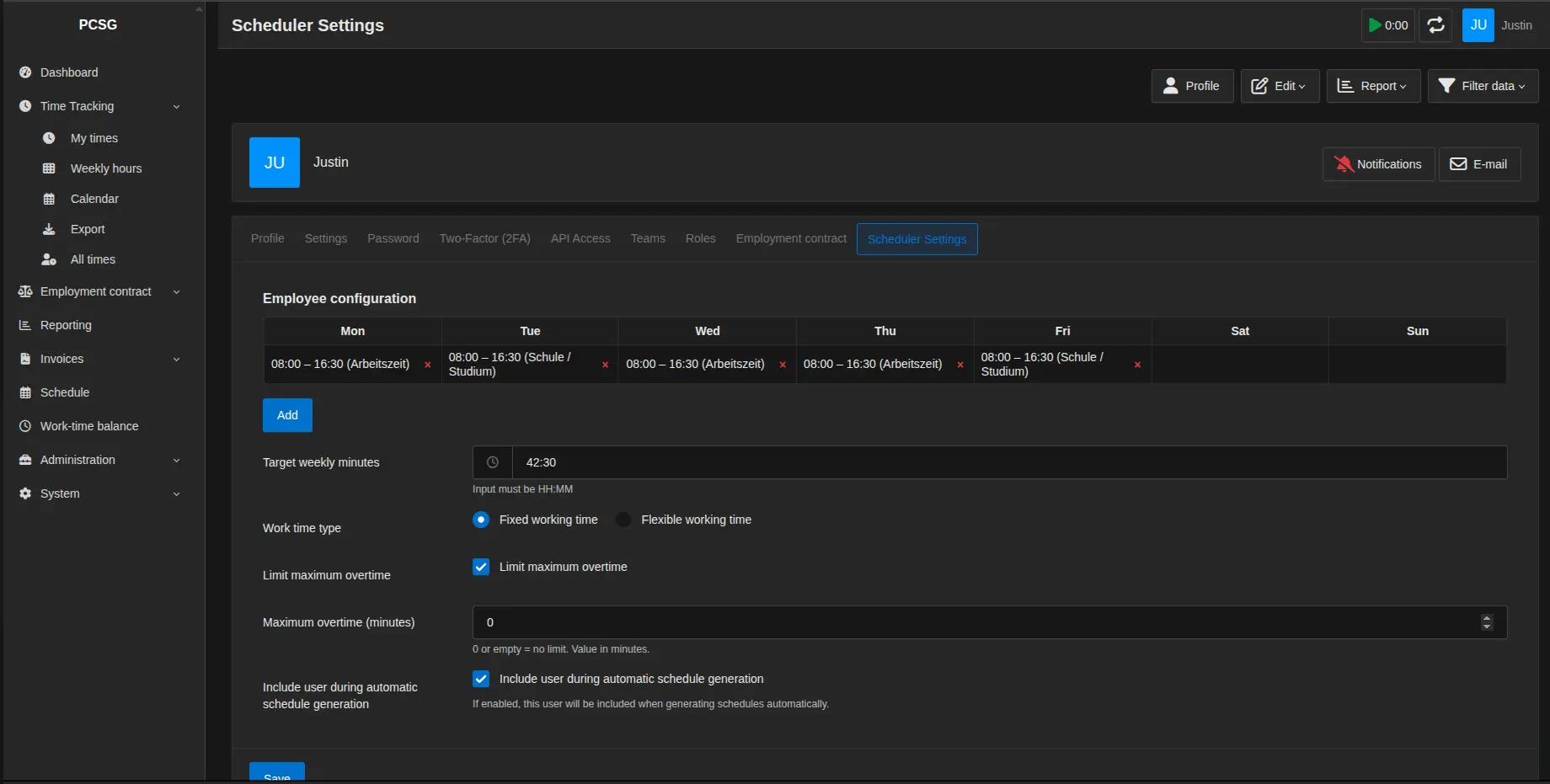
- Creates shifts for all active users from their standard working times, skips overlapping entries and reports missing master data.
- Manual schedule entries
- Form for employee, team, activity, date/time, description and absence (half-day fields included) with save/delete actions.
- Validations & absence rules
- Prevents double bookings, enforces proper time ranges and requires consistent half-day absences within the shift.
- Notifications & monitoring
- Planner bar with checks for missing timesheets, outside standard hours, weekly hours over/under target, overtime limits, missing standard schedules and unmet daily/weekly staffing levels.
- Translations
- German and English (based on your Kimai UI language)
Troubleshooting
- Plugin does not show up
- Check the folder name: must be
TeamSchedulerBundle - Is it located directly under
var/plugins/? - Is there a
var/plugins/TeamSchedulerBundle/.disabledfile? - Did you clear the
prodcache and reload Kimai?
- Check the folder name: must be
- Composer errors on manual install
- Run
composer installagain inside the plugin directory
- Run
Requirements
- Kimai 2.20 or higher
Configuration
- Configure roles and permissions in Kimai so the intended users can access the scheduler.
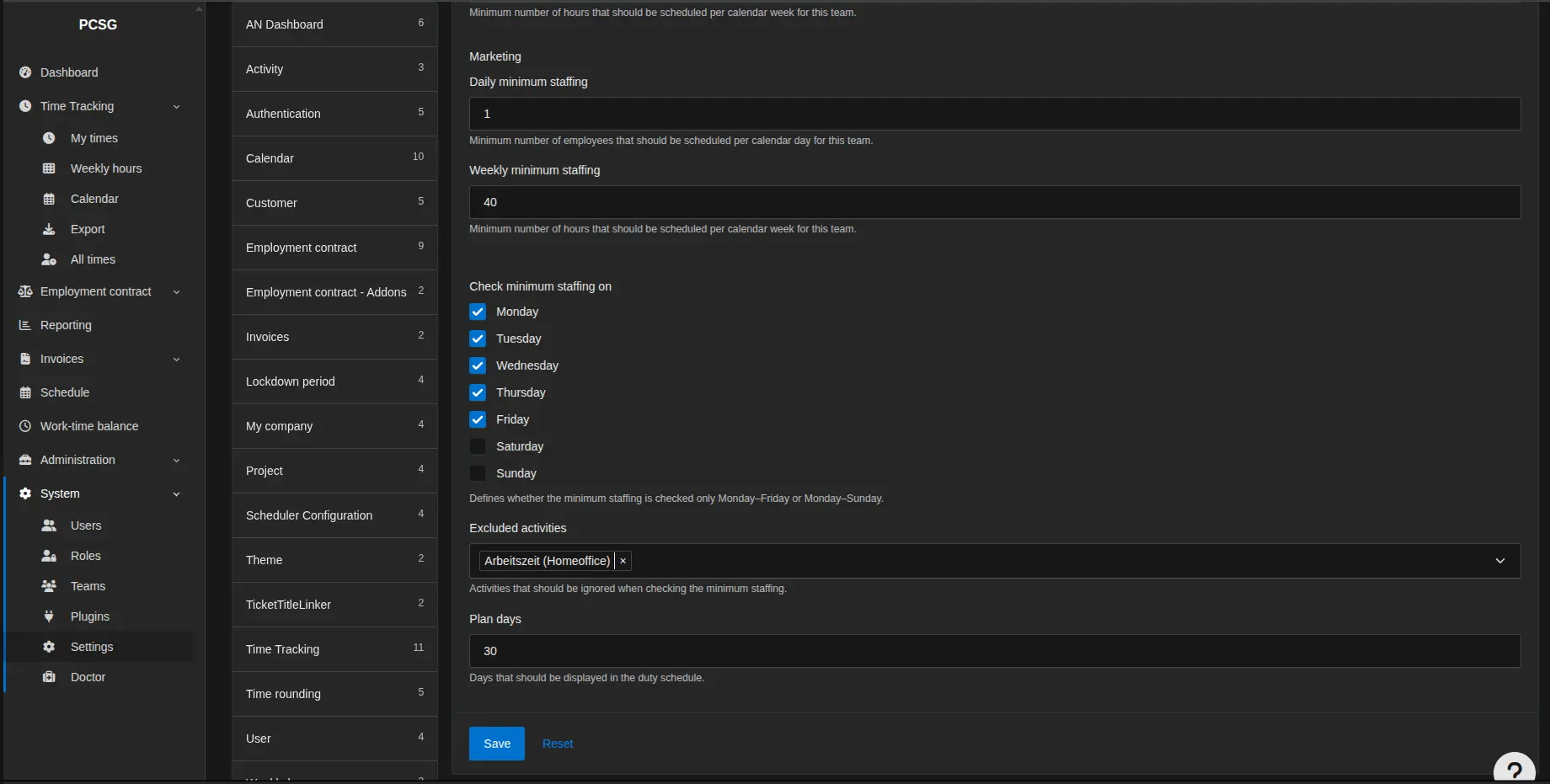
- Go to System → Settings → Scheduler Configuration and configure:
- Minimum staffing
- Weekdays
- Excluded activities
- Planning period
- Ask staff to maintain their scheduler profiles. These are required for automatic schedule generation and validations.
Support
If you require support for the usage or setup of this plugin or find any bugs please contact support@pcsg.de!
Inštalácia
Kopírovať súbory
Extract the ZIP file and upload the included directory and all files to your Kimai installation to the new directory:
var/plugins/TeamSchedulerBundle/The file structure needs to look like this afterwards:
var/plugins/
├── TeamSchedulerBundle
│   ├── TeamSchedulerBundle.php
|   └ ... more files and directories follow here ...
Vymazať cache
After uploading the files, Kimai needs to know about the new plugin. It will be found once the cache was re-built. Call these commands from the Kimai directory:
How to reload Kimai cache
bin/console kimai:reload --env=prod
It is not advised, but in case the above command fails you could try:
rm -r var/cache/prod/*
You might have to set file permissions afterwards:
Adjust file permission
You have to allow PHP (your webserver process) to write to var/ and it subdirectories.
Here is an example for Debian/Ubuntu, to be executed inside the Kimai directory:
chown -R :www-data .
chmod -R g+r .
chmod -R g+rw var/
You might not need these commands in a shared-hosting environment.
And you probably need to prefix them with sudo and/or the group might be called different from www-data.
Vytvoriť databázu
Run the following command:
bin/console kimai:bundle:teamschedulerbundle:installThis will create the required database tables and update them to the latest version.
If you see an error like There are no commands defined in the "kimai:bundle:XYZ" namespace.,
then either the directory has a wrong name (must be var/plugins/TeamSchedulerBundle/) or you forgot to clear the cache (look above).
Aktualizácie
Updating the plugin works exactly like the installation:
- Delete the directory
var/plugins/TeamSchedulerBundle/ -
Execute all installation steps again:
- Kopírovať súbory
- Vymazať cache
- Update database with
bin/console kimai:bundle:teamschedulerbundle:install
Snímky obrazovky